


Rather than using gnome-keyring or kwallet, it's possible to use KeePassXC as your system keyring. Why would you want to do this? It's more secure and convenient than any of the aforementioned services, because:
In theory, you can also use it to store browser passwords, but we use VaultWarden for this and a flatpak-sandboxed browser, so this is outside of the scope of this article. Regardless, hopefully this can help you make your desktop and scripts much more secure without an undue amount of inconvenience.
This article was developed on Debian GNU/Linux. An attempt was made to get this working on NetBSD 11, but the included KeePassXC port does not seem to include Secret Service integration, and the YubiKey seems to not currently be functional on NetBSD.
Before setting up KeePassXC, you can setup your YubiKey to enable an additional layer of security, if you have one. This isn't required, but it's nice to have! On Debian:
| sudo apt install yubikey-manager-qt |
Once the YubiKey Manager is installed, ensure your YubiKey is plugged in and open YubiKey Manager from your applications menu.
You can close YubiKey Manager after this.
You may wish to purge gnome-keyring so that it does not start on login. KDE Wallet may similarly interfere, but on our test system it does not start itself automatically, the way GNOME keyring does, and removing it also removings other KDE programs. Your Mileage May Vary. In theory, this should be as simple as:
| sudo apt purge gnome-keyring |
Depending on your distribution and desktop environment, you may have to resort to more... dramatic means. As a rough example:
| sudo systemctl --global disable gnome-keyring-daemon.service | |
| sudo systemctl --global disable gnome-keyring-daemon.socket | |
| systemctl --user stop gnome-keyring-daemon.socket | |
| systemctl --user stop gnome-keyring-daemon.service |
Obviously, KeePassXC must be installed. For example, to do this on Debian, use:
| sudo apt install keepassxc-full |
When KeePassXC is installed, open it select the New Database option from Database menu to begin the database creation process:
To use KeePassXC as the keyring, you may also need some other files in place. Per the KeePassXC documentation, you would want a file at $HOME/.local/share/dbus-1/services/org.freedesktop.secrets.service with the contents:
| [D-BUS Service] | |
| Name=org.freedesktop.secrets | |
| Exec=/usr/bin/keepassxc |
You may also wish to to force libsecret to use KeePassXC as the keyring by placing the following in $HOME/.config/python_keyring/keyringrc.cfg:
| [backend] | |
| default-keyring=keyring.backends.libsecret.Keyring |
With these in place, you may then switch back to KeePassXC to configure it as the system keyring:
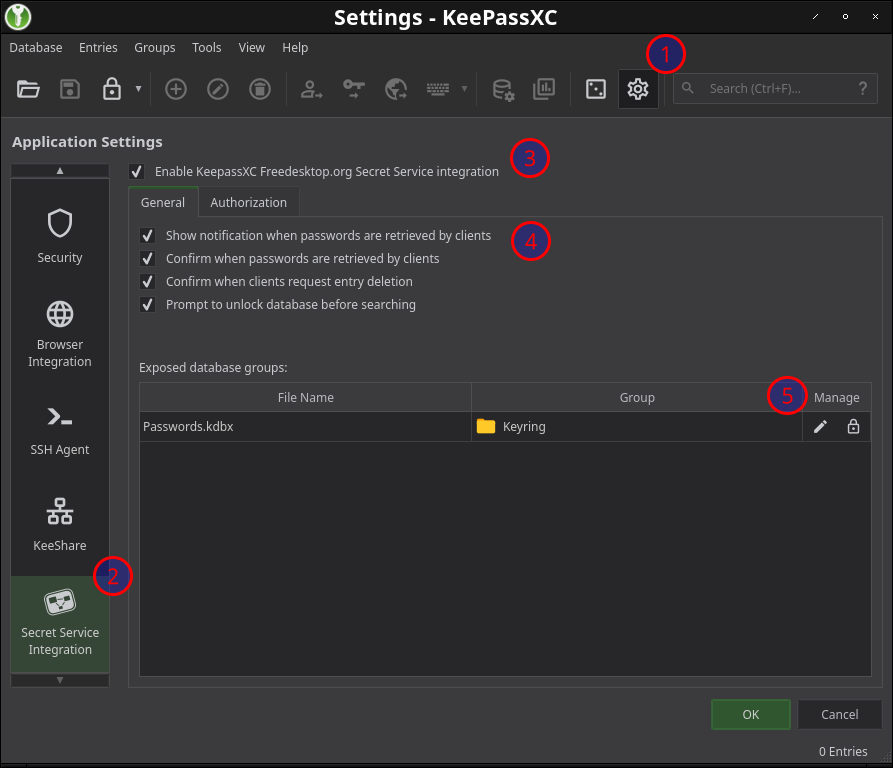
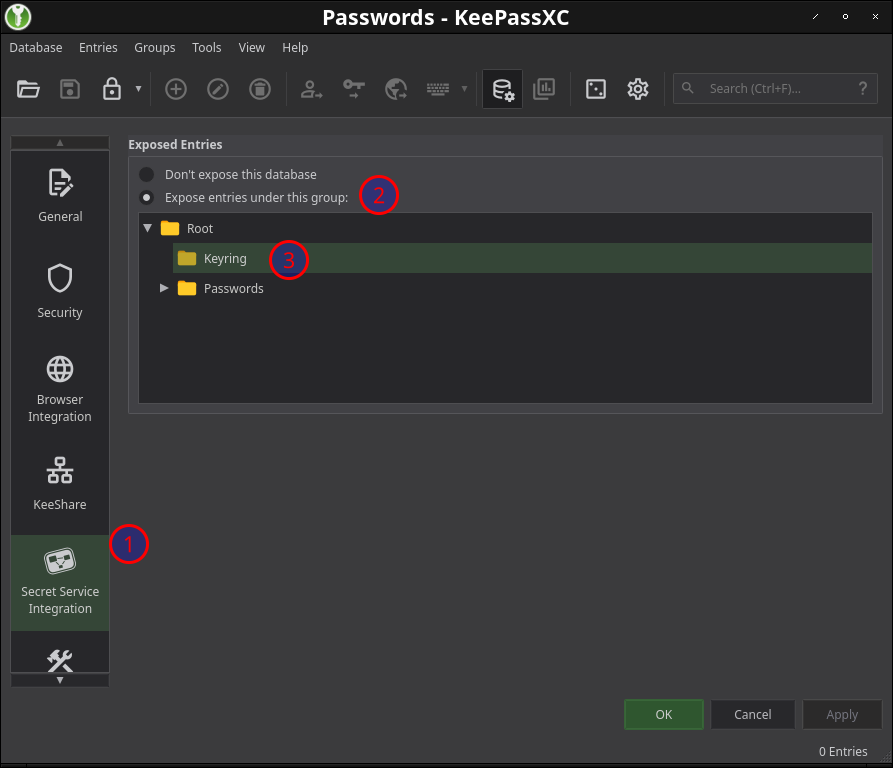
At this point, the window will change to a very-similar-yet-distinct settings dialog for your database.
This section should work with any keyring service and without using KeePassXC, specifically, but we include it here for completeness as many may not be aware.
Do you hard-code passwords into scripts? Does this feel icky? There is a solution: keep the password in the keyring and have the script ask the keyring when it needs it! This is possible with python-keyring and libsecret. On debian, these are found in these packages:
| sudo apt install python3-keyring libsecret-1-0 |
Here is a rough example of the pattern to retrieve a password from the keyring in a shell script (in this case, to provide the password to encfs):
| # Make an attempt to get the password for dest_dir. | |
| _pw="`keyring get encfs $_dest_dir`" | |
| if -z "$_pw" ; then | |
| # No password was found in the keyring. Make one! | |
| keyring set encfs $_dest_dir | |
| # Grab the password that was just entered. | |
| _pw="`keyring get encfs $_dest_dir`" | |
| fi | |
| # Mount the encfs directory using the password. | |
| echo "$_pw" | encfs -S $_src_dir $_dest_dir |
Of course, libsecret is a C library, so you can also retrieve passwords in a C program you write with something like:
| #include | |
| /* Setup a schema to use with libsecret. */ | |
| static const SecretSchema schema = { | |
| "com.example.program", | |
| SECRET_SCHEMA_NONE, | |
| { | |
| { "account", SECRET_SCHEMA_ATTRIBUTE_STRING }, | |
| { NULL, 0 } | |
| } | |
| }; | |
| /* Simple function to get a password from the vault. */ | |
| char* use_password( char* account ) { | |
| /* Lookup the password for account synchronously. */ | |
| char *password = secret_password_lookup_sync( | |
| &schema, NULL, &error, "account", account, NULL ); | |
| if( password ) { | |
| /* We found a password, so return it! */ | |
| return password; | |
| } else { | |
| /* No password, so ask for one! */ | |
| password = prompt_for_password(parent); | |
| } | |
| if( !password ) { | |
| /* No password even after asking... */ | |
| return NULL; | |
| } | |
| /* Store the password we asked for! */ | |
| secret_password_store_sync( | |
| &schema, SECRET_COLLECTION_DEFAULT, "Example Password", | |
| password, NULL, &error, "account", "default", NULL ); | |
| } |
This is a *very* stripped-down example, with no error checking or prompt implementation (something that would go into the you-provided prompt_for_password(), but hopefully it gives an idea of the process. More information can be found in the libsecret documentation.
When combined with using KeePassXC for the keyring, either of these should cause KeePassXC to display a dialog box, prompting you to allow or deny access to the requested password. This provides the convenience of not having to enter the password every time with a modicum of security by letting you know when something requests it.